
PROVIDER ADMINISTRATION
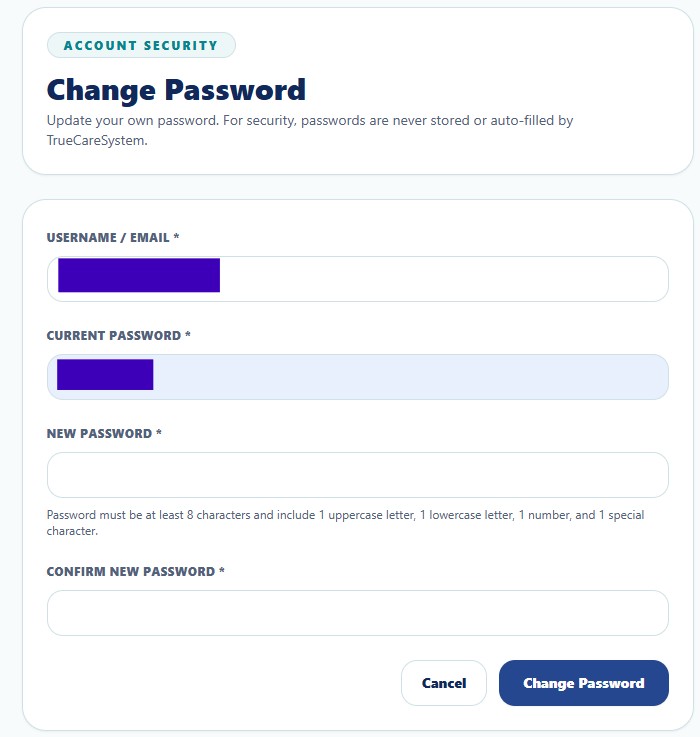
Change Password
Allow authenticated users to securely update their own account password.
Privacy, security, and administrative access notice
Administrative pages may display workforce identity, Provider identifiers, contact information, organizational assignments, role permissions, and access-control data. Public screenshots use redacted or demonstration information.
Secure Process
- Confirm username or email.
- Enter current password.
- Enter a compliant new password.
- Confirm the new password.
- Select Change Password.
Passwords must never be shared by email, support ticket, announcement, screenshot, or plain text.
Admin Guides
| Function | Purpose | Documentation |
|---|---|---|
| Users | Create and maintain Provider user accounts, status, password resets, and role assignments. | Open Guide → |
| Role Management | Define role-based permissions, access scope, least privilege, and separation of duties. | Open Guide → |
| Department Management | Create departments, assign managers, and organize employees for KPI and approvals. | Open Guide → |
| Announcements | Send role-targeted internal communications. | Open Guide → |
| Branches / Locations | Maintain regions, branches, offices, addresses, codes, and status. | Open Guide → |
| Change Password | Update authenticated-user credentials securely. | Current guide |
| Provider Profile | Maintain Provider identity, branding, contacts, identifiers, alerts, and defaults. | Open Guide → |
Security, HIPAA, and Audit Expectations
- Verify the correct Provider scope before changing data.
- Grant only access necessary for approved duties.
- Use Role Management to enforce least privilege and minimum necessary access.
- Do not include credentials, SSNs, full payment data, or unnecessary PHI.
- Use deactivation instead of deleting records required for accountability.
- Review significant changes through Audit Logs.