
WORKFORCE • OFFICE ATTENDANCE
Time Keeping
GPS-supported office attendance, weekly approval, payroll-ready totals, and duplicate-hour prevention for employees who perform more than one role.
Time Keeping is designed for employees working in office-based positions such as Provider Administration, HR, Payroll, Billing, Compliance, Scheduling, Nursing Administration, Supervisory, and other authorized office roles. It is not used as the normal attendance method for DSP community-service shifts, because DSP service time is recorded through the Schedule, Mobile EVV, and visit workflows.
Purpose
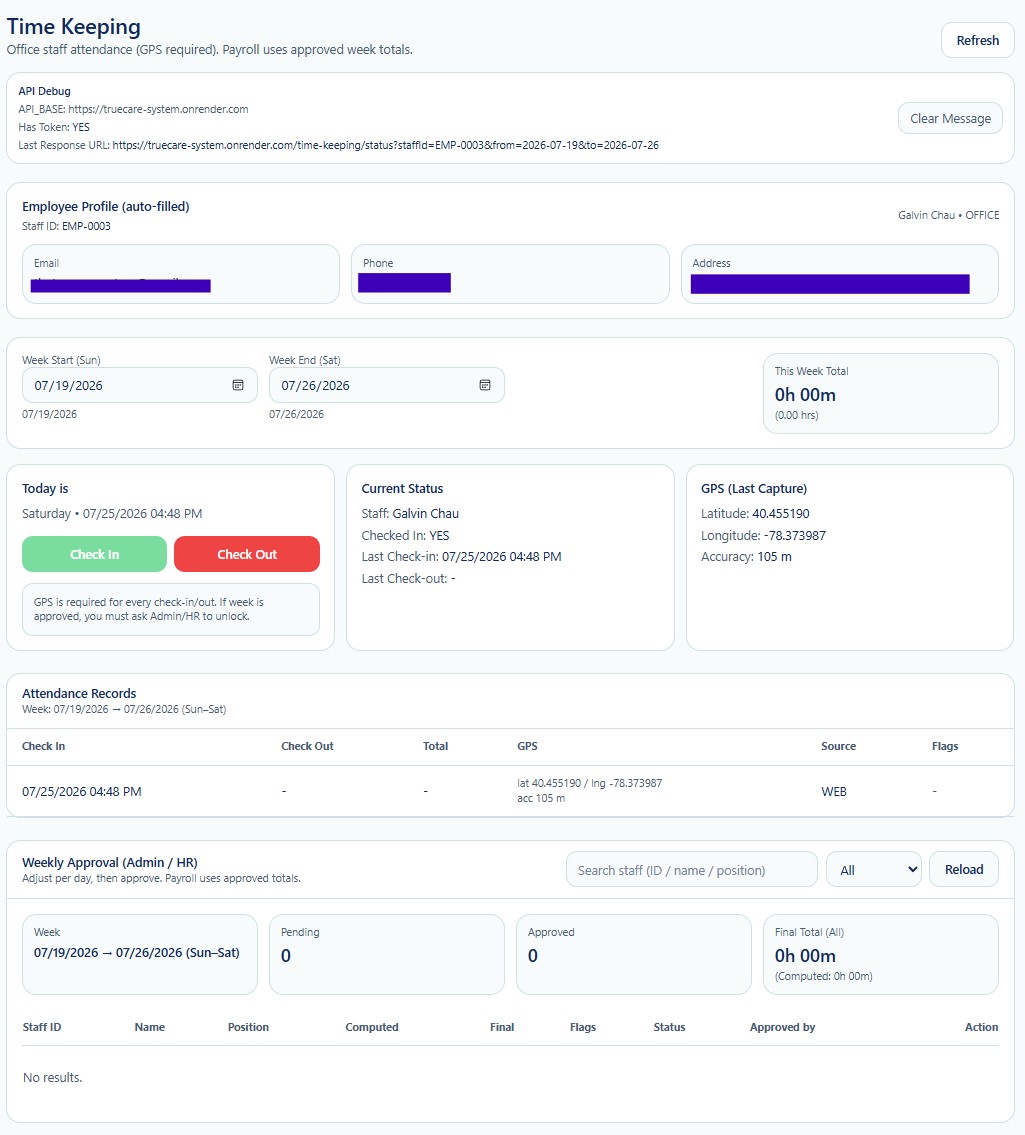
The Time Keeping workspace provides a controlled method for office employees to check in and check out, capture GPS evidence, review weekly attendance, and submit time for administrative approval. The approved weekly total can then be used by Payroll as the official office-hours source.
The module helps the Provider distinguish office labor from direct-service labor, apply the correct position rate, monitor weekly hours, and prevent the same period of time from being counted twice across different job assignments.
Who Uses This Module
Records office work time
Uses Check In and Check Out while performing an authorized office position.
Reviews and approves
Reviews weekly totals, flags, adjustments, and approval status before payroll processing.
Uses approved totals
Uses the final approved hours as the office-time basis for wage calculation and overtime review.
Office Role and DSP Role Separation
An employee may hold both an office position and a DSP position. True Care System separates these responsibilities so each period of work is assigned to the correct job role and rate.
| Work Situation | System Handling |
|---|---|
| Office work | The employee uses Time Keeping. The hours are assigned to the employee's authorized office position and office pay rate. |
| DSP direct-service work | The employee uses the Schedule and Mobile EVV workflow. The time is connected to the Individual, service, visit, authorization, and DSP assignment. |
| Employee works both roles | The system separates office attendance from DSP visit time and assigns each period to the correct position instead of combining both roles into one undifferentiated time record. |
| Potential time overlap | The system can identify or prevent overlapping periods so the same minutes are not duplicated between office attendance and DSP service time. |
Core Functions
| Function | General Purpose |
|---|---|
| Employee Profile | Auto-fills the authorized employee's staff ID, name, position, email, phone, and address information. |
| Week Selection | Displays attendance for the selected Sunday-to-Saturday workweek. |
| Check In | Starts an office attendance record and captures the time, user identity, source, and GPS information. |
| Check Out | Ends the active office attendance record and calculates the worked duration. |
| GPS Evidence | Stores the last captured latitude, longitude, and accuracy to support attendance verification. |
| Attendance Records | Displays check-in, check-out, total duration, GPS, source, and any flags for the selected week. |
| Weekly Total | Calculates the employee's office hours for the selected week before approval. |
| Weekly Approval | Allows authorized Admin or HR users to review, adjust when permitted, approve, and lock the weekly total. |
| Payroll Handoff | Provides Payroll with the approved total rather than an unreviewed raw attendance calculation. |
Standard Workflow
Employee checks in
Time and GPS are captured for the office role.
Employee checks out
The attendance period is closed and calculated.
Admin or HR reviews
Weekly totals, overlaps, flags, and authorized adjustments are reviewed.
Payroll uses approval
The approved total becomes the office-hours basis for payroll.
Duplicate-Hour Prevention
When an office employee also performs DSP work, the system must not pay the same minutes twice under two positions. Office attendance and DSP visit time are therefore treated as separate sources. The system compares the recorded periods, preserves the correct role assignment, and supports review of any overlapping or conflicting time.
This separation protects the employee by helping ensure that all legitimate work is credited under the correct position and rate. It also protects the Provider by reducing duplicate payroll, unsupported direct-service time, and inaccurate overtime calculations.
Rates and Weekly Overtime
Each approved period should remain connected to the position under which the employee performed the work. Office hours can use the office-position rate, while DSP service hours can use the applicable DSP or service-related employment rate.
Payroll may combine eligible hours across positions when determining total weekly hours and overtime obligations, while still preserving the separate rate and work-role history. The final payroll calculation should follow the Provider's approved compensation rules and applicable federal, state, payer, and employment requirements.
Important Controls
- GPS is required for office check-in and check-out when enabled by Provider policy.
- An employee should not remain checked into the office role while actively providing DSP services.
- Approved weeks may require Admin or HR authorization before they can be unlocked or changed.
- Manual adjustments should include an authorized reason and remain available for audit review.
- Payroll should use approved totals rather than incomplete or open attendance records.
Security and Audit
Access to Time Keeping should be role-based. Employee actions, approval actions, changes, GPS evidence, timestamps, and the identity of the approving user should be retained as part of the attendance and payroll audit trail.
Employee contact and location information should only be accessed by authorized users for legitimate workforce, payroll, compliance, or operational purposes.
Best Practices
- Check in only when office work begins and check out when office work ends.
- Use the DSP Mobile EVV workflow for direct-service shifts instead of Time Keeping.
- Resolve open check-ins, overlaps, and attendance flags before weekly approval.
- Confirm the employee's assigned position and rate before payroll is finalized.
- Document every approved adjustment with a clear operational reason.