
EMPLOYEE MANAGEMENT
New Employee
The New Employee page is used to create a complete employee profile in True Care System. It captures personal information, employment details, branch and work location, address, emergency contact information, work preferences, notification settings, and mobile application access.
Screen Overview
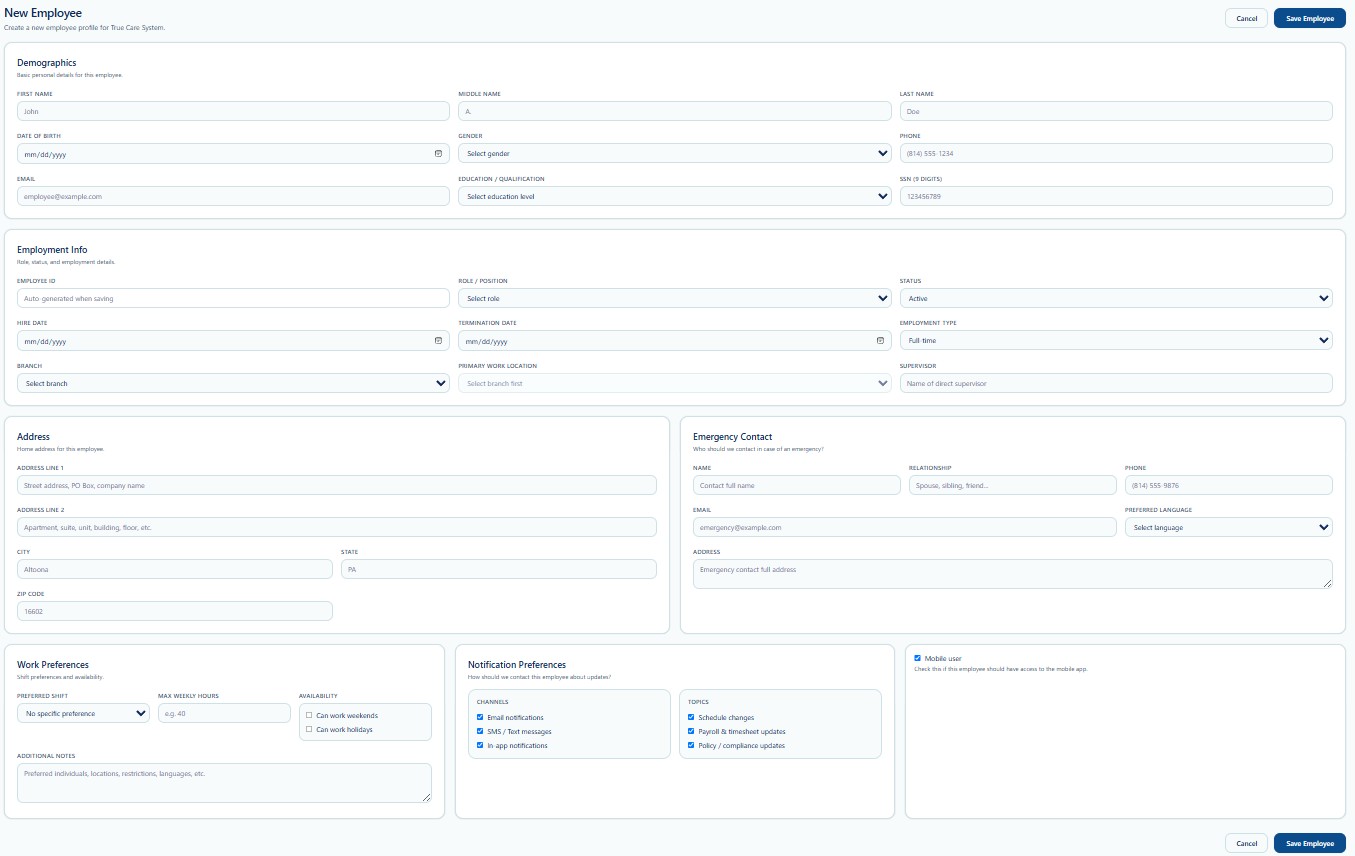
The New Employee page is a single-page workflow. Complete each section from top to bottom, review required fields, and select Save Employee when the record is ready.
Page Actions
| Action | Description | When to Use |
|---|---|---|
| Cancel | Leaves the New Employee page without completing the record. | Use when the employee should not be created. |
| Save Employee | Validates the form and creates the employee record. | Use after required information has been reviewed. |
Before creating a new employee, use Search Employee to confirm that the person does not already have an employee record.
Demographics
Demographics records the employee's basic personal and contact information.
| Field | Description | Guidance |
|---|---|---|
| First Name | Employee's legal first name. | Use the name shown on approved employment documents. |
| Middle Name | Employee's middle name or initial. | Optional unless required by Provider policy. |
| Last Name | Employee's legal last name. | Verify spelling before saving. |
| Date of Birth | Employee's date of birth. | Use MM/DD/YYYY. |
| Gender | Employee's gender selection. | Select the applicable value from the list. |
| Phone | Primary employee phone number. | Use a current number that can receive authorized communication. |
| Primary employee email address. | Verify the address carefully because it may be used for notifications or access. | |
| Education / Qualification | Highest education level or relevant qualification. | Select the most accurate available option. |
| SSN (9 digits) | Employee Social Security Number. | Enter only when authorized and required. Protect this value as highly sensitive information. |
Employment Info
Employment Info defines the employee's role, status, dates, branch, work location, employment type, and supervisor.
| Field | Description | Guidance |
|---|---|---|
| Employee ID | True Care System employee identifier. | The screen indicates that this value is generated automatically when saving. |
| Role / Position | Employee's assigned system and operational role. | Select the role that matches approved job responsibilities. |
| Status | Current employment status. | The default shown is Active. Change only when appropriate. |
| Hire Date | Date employment began. | Use MM/DD/YYYY. |
| Termination Date | Date employment ended. | Leave blank for an active employee unless otherwise required. |
| Employment Type | Full-time, part-time, temporary, contractor, or other configured type. | Select the correct employment arrangement. |
| Branch | Provider branch associated with the employee. | Select the employee's approved branch. |
| Primary Work Location | Main work location within the selected branch. | Select the Branch first, then choose the correct location. |
| Supervisor | Name of the employee's direct supervisor. | Enter the current approved supervisor. |
Primary Work Location may remain unavailable until a Branch is selected.
Address
Address records the employee's home mailing or residential address.
| Field | Description | Guidance |
|---|---|---|
| Address Line 1 | Street address, PO Box, or primary address information. | Enter the main address line. |
| Address Line 2 | Apartment, unit, building, or additional address information. | Optional. |
| City | City or municipality. | Use the current city. |
| State | State abbreviation. | The screenshot shows PA. |
| ZIP Code | Postal ZIP code. | Verify the ZIP code before saving. |
Emergency Contact
Emergency Contact identifies the person the Provider should contact when an emergency involves the employee.
| Field | Description | Guidance |
|---|---|---|
| Name | Full name of the emergency contact. | Confirm with the employee. |
| Relationship | Relationship to the employee. | Example: spouse, sibling, parent, or friend. |
| Phone | Primary emergency contact phone number. | Use a current reachable number. |
| Emergency contact email address. | Optional unless required. | |
| Preferred Language | Preferred communication language of the emergency contact. | Select the appropriate language when known. |
| Address | Emergency contact's address. | Enter only when required by Provider policy. |
Work Preferences
Work Preferences records scheduling and availability information that can support staffing decisions.
| Field | Description | Guidance |
|---|---|---|
| Preferred Shift | Employee's preferred work shift. | Select the closest configured option or No specific preference. |
| Max Weekly Hours | Maximum preferred or approved weekly hours. | Enter a realistic value such as 40. |
| Can Work Weekends | Indicates weekend availability. | Select only when confirmed. |
| Can Work Holidays | Indicates holiday availability. | Select only when confirmed. |
| Additional Notes | Other work preferences or staffing restrictions. | Use objective, necessary, and current information. |
Work preferences support staffing but do not guarantee a specific schedule. Final assignments depend on authorization, employee qualifications, service needs, branch operations, and supervisor approval.
Notification Preferences
Notification Preferences controls how the employee receives system updates and which topics are included.
Channels
- Email notifications
- SMS / Text messages
- In-app notifications
Topics
- Schedule changes
- Payroll and timesheet updates
- Policy and compliance updates
Review these selections with the employee and verify that the related phone number and email address are accurate.
Mobile User
The Mobile User checkbox controls whether the employee should have access to the True Care System mobile application.
Enable Mobile User When
- The employee performs mobile EVV check-in or check-out.
- The employee needs mobile schedule access.
- The employee needs approved mobile documentation features.
- The employee has completed required onboarding and security steps.
Do Not Enable Mobile User When
- The employee does not require the mobile application.
- The employee record is incomplete or inactive.
- Mobile access has not been approved.
- The employee should not access Individual or visit information from a mobile device.
Role and Access Considerations
Role / Position and Mobile User settings may affect what the employee can access. Assign only the role and access required for approved job duties.
- Use the least-privilege principle.
- Do not assign Provider Admin access to routine staff.
- Verify branch and location scope.
- Review access when duties change.
- Disable or update access promptly when employment ends.
Recommended Workflow
- Search for the employee to prevent duplicates.
- Open New Employee.
- Complete Demographics.
- Complete Employment Info.
- Select Branch and Primary Work Location.
- Complete Address and Emergency Contact.
- Review Work Preferences.
- Review Notification Preferences.
- Enable Mobile User only when required.
- Review the entire page.
- Select Save Employee.
- Return to Search Employee and confirm the new record.
Validation Checklist
- The employee does not already exist.
- Legal first and last names are correct.
- Date of birth is accurate.
- Phone and email are valid.
- Education or qualification is selected when required.
- SSN is entered only when authorized and verified.
- Role / Position is correct.
- Status and Employment Type are correct.
- Hire Date is accurate.
- Termination Date is blank for an active employee unless applicable.
- Branch and Primary Work Location are correct.
- Supervisor information is current.
- Address and emergency contact information are reviewed.
- Work and notification preferences are confirmed.
- Mobile User access is appropriate.
Best Practices
- Search before creating a new employee.
- Use verified employment and identity records.
- Assign the correct role from the beginning.
- Keep branch and work location accurate.
- Review phone and email before enabling notifications.
- Protect SSN and other sensitive employee information.
- Use objective wording in Additional Notes.
- Enable mobile access only when operationally necessary.
- Update status and access promptly when employment changes.
Security and HIPAA
New Employee contains sensitive personal and employment information, including SSN, date of birth, contact information, address, emergency contacts, employment status, role, work location, and access settings.
- Access this page only for authorized HR or administrative work.
- Apply role-based access and least privilege.
- Do not expose SSN or employee data in screenshots or unapproved messages.
- Verify the correct Provider and Branch before saving.
- Do not use placeholder personal information.
- Review mobile and system access carefully.
- Record access and changes through Audit Logs where applicable.
Troubleshooting
Save Employee does not complete.
Review required fields and any validation messages. Confirm phone, email, date, and SSN formats.
Primary Work Location is unavailable.
Select the Branch first. Then choose an available Primary Work Location.
The correct Role / Position is missing.
Contact an authorized administrator to review role configuration. Do not select an incorrect role.
The employee already exists.
Cancel the new record and use Search Employee to open the existing employee.
Mobile access does not work after saving.
Confirm that Mobile User is enabled, the employee is Active, contact information is correct, and the required account onboarding process has been completed.
The employee ID is blank before saving.
This is expected when the field is configured to auto-generate during Save Employee.
Frequently Asked Questions
Can Employee ID be entered manually?
The screen indicates that Employee ID is generated automatically when saving.
Should a termination date be entered for an active employee?
Normally, no. Enter a termination date only when applicable and approved.
Can more than one Branch be assigned?
The New Employee screen shows one primary Branch. Additional assignment workflows, when supported, should follow Provider policy.
Does Mobile User automatically assign permissions?
No. Mobile User enables mobile access eligibility, while role and permission settings control available functions.
Is SSN required?
Enter it only when required by Provider workflow and authorized for collection.
Can notification preferences be changed later?
Yes. Open the employee through Search Employee and update the approved settings.