
EMPLOYEE MANAGEMENT
Employees
The Employees module is used to create, search, review, and maintain employee records. It supports demographics, employment information, branch assignment, contact details, work preferences, notification preferences, mobile access, and ongoing staff management.
Employee Menu
The Employees menu contains two primary options. These are the main entry points for creating or locating employee records.

| Menu | Purpose | Documentation |
|---|---|---|
| New Employee | Create a new employee record and assign employment-related information. | Open guide |
| Search Employee | Find existing employees by name, employee ID, email, branch, or status. | Open guide |
New Employee
New Employee is used to create a complete employee profile. The screen is organized into practical sections instead of multiple tabs.
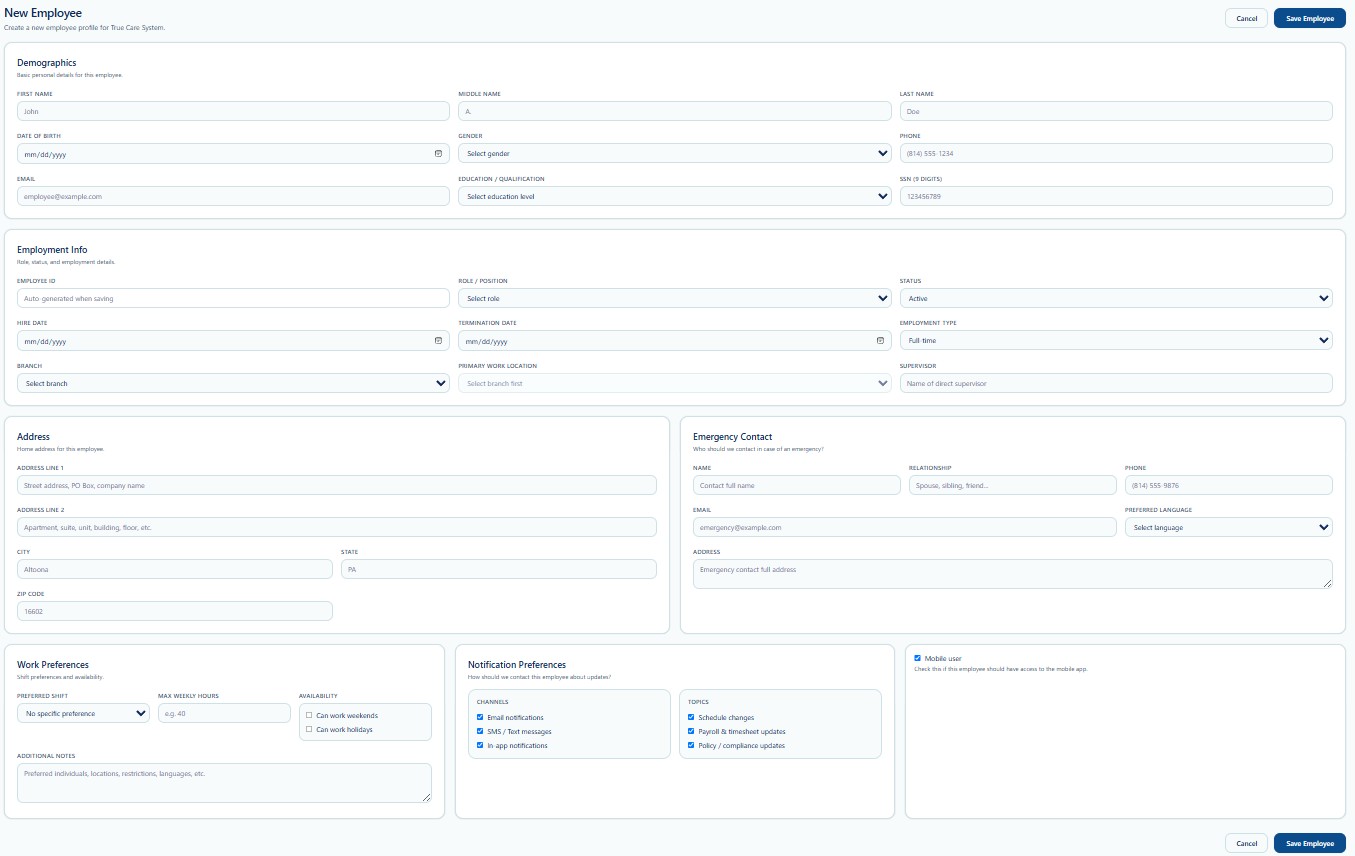
New Employee Sections
| Section | What Users Enter or Review |
|---|---|
| Demographics | First name, middle name, last name, date of birth, gender, phone, email, education or qualification, and SSN information. |
| Employment Info | Employee ID, role or position, status, hire date, termination date, employment type, branch, primary work location, and supervisor. |
| Address | Home address, city, state, and ZIP code. |
| Emergency Contact | Emergency contact name, relationship, phone, email, preferred language, and address. |
| Work Preferences | Preferred shift, maximum weekly hours, weekend or holiday availability, and additional staffing notes. |
| Notification Preferences | Email, SMS, in-app notification channels and topics such as schedule, payroll, timesheet, policy, and compliance updates. |
| Mobile User | Controls whether the employee may access the True Care System mobile application. |
Search Employee
Search Employee is the primary page for locating and opening an existing employee record.
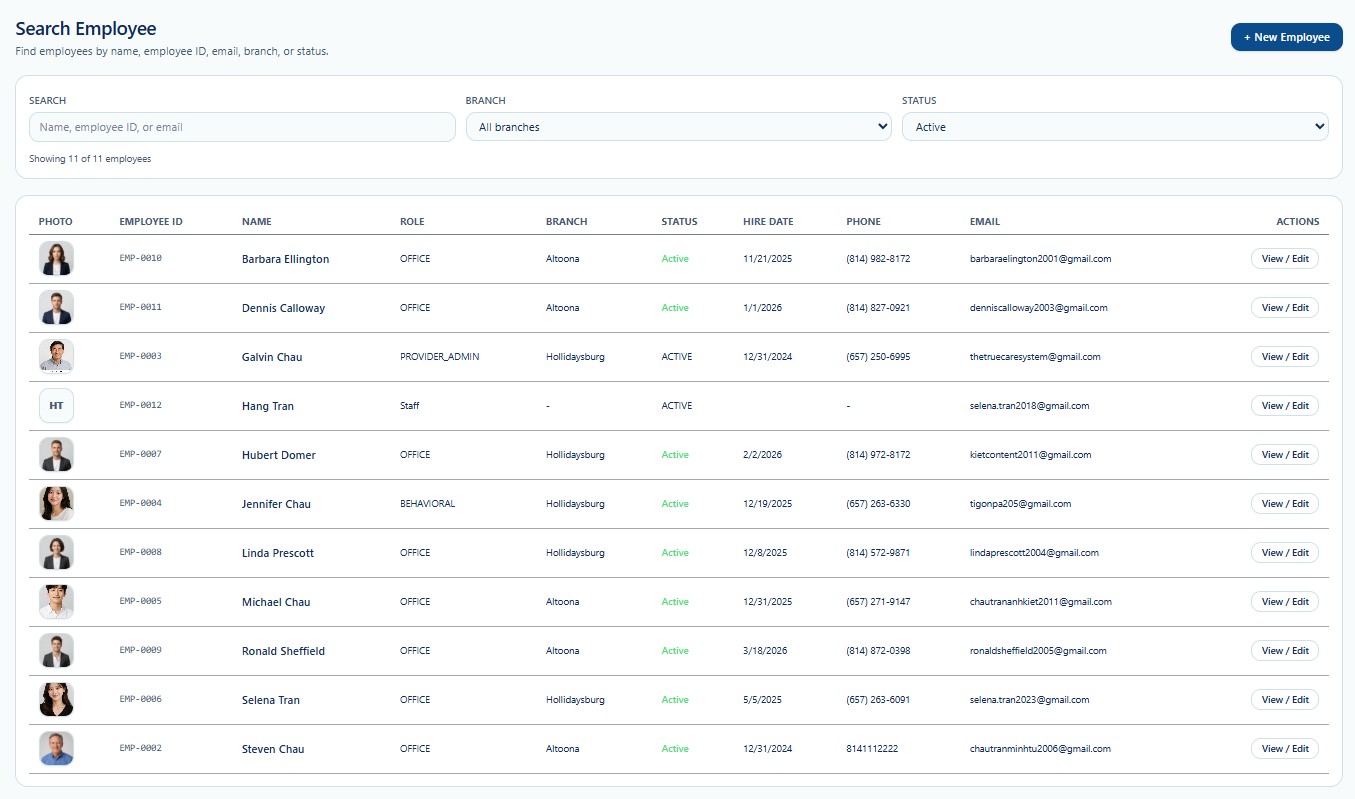
Available Search Functions
- Search by employee name, employee ID, or email.
- Filter by Branch.
- Filter by employee Status.
- Review the number of matching employees.
- Review employee photo, ID, name, role, branch, status, hire date, phone, and email.
- Select View / Edit to open the employee record.
- Select + New Employee to create a new employee.
Recommended Workflow
- Search existing employees before creating a new record.
- Use Search Employee to confirm the employee does not already exist.
- Select + New Employee.
- Complete demographics and employment information.
- Select the correct branch and primary work location.
- Complete address and emergency contact information.
- Review work and notification preferences.
- Enable Mobile User only when mobile access is required.
- Select Save Employee.
- Return to Search Employee to verify the new record.
Validation Checklist
- The employee does not already exist.
- Legal name and date of birth are accurate.
- Phone and email use valid formats.
- Role or Position is selected correctly.
- Employment Status and Employment Type are correct.
- Hire Date is accurate.
- Branch and Primary Work Location are selected.
- Supervisor information is correct when applicable.
- Emergency contact information is current.
- Work and notification preferences are reviewed.
- Mobile User access is enabled only when appropriate.
Best Practices
- Search before creating a new employee to prevent duplicates.
- Use the employee's legal name and verified employment information.
- Assign the correct role, branch, and work location.
- Keep phone, email, and emergency contact information current.
- Review termination dates and status changes carefully.
- Limit mobile access to employees who need the mobile application.
- Review notification preferences with the employee.
- Do not enter placeholder SSN, email, or phone information.
Security and HIPAA
Employee records may contain personally identifiable information, employment details, contact information, SSN data, emergency contacts, work assignments, and access settings.
- Access employee records only for authorized business purposes.
- Apply role-based access and the minimum necessary principle.
- Protect SSN and other sensitive employment information.
- Do not share employee screenshots through unapproved channels.
- Verify the correct employee before editing the record.
- Access and changes should be recorded through Audit Logs where applicable.