
EMPLOYEE MANAGEMENT
Search Employee
Search Employee is the primary page for locating existing employee records. Users can search by name, employee ID, or email, filter by branch and status, review employee summary information, open a record through View / Edit, or begin creating a new employee.
Screen Overview
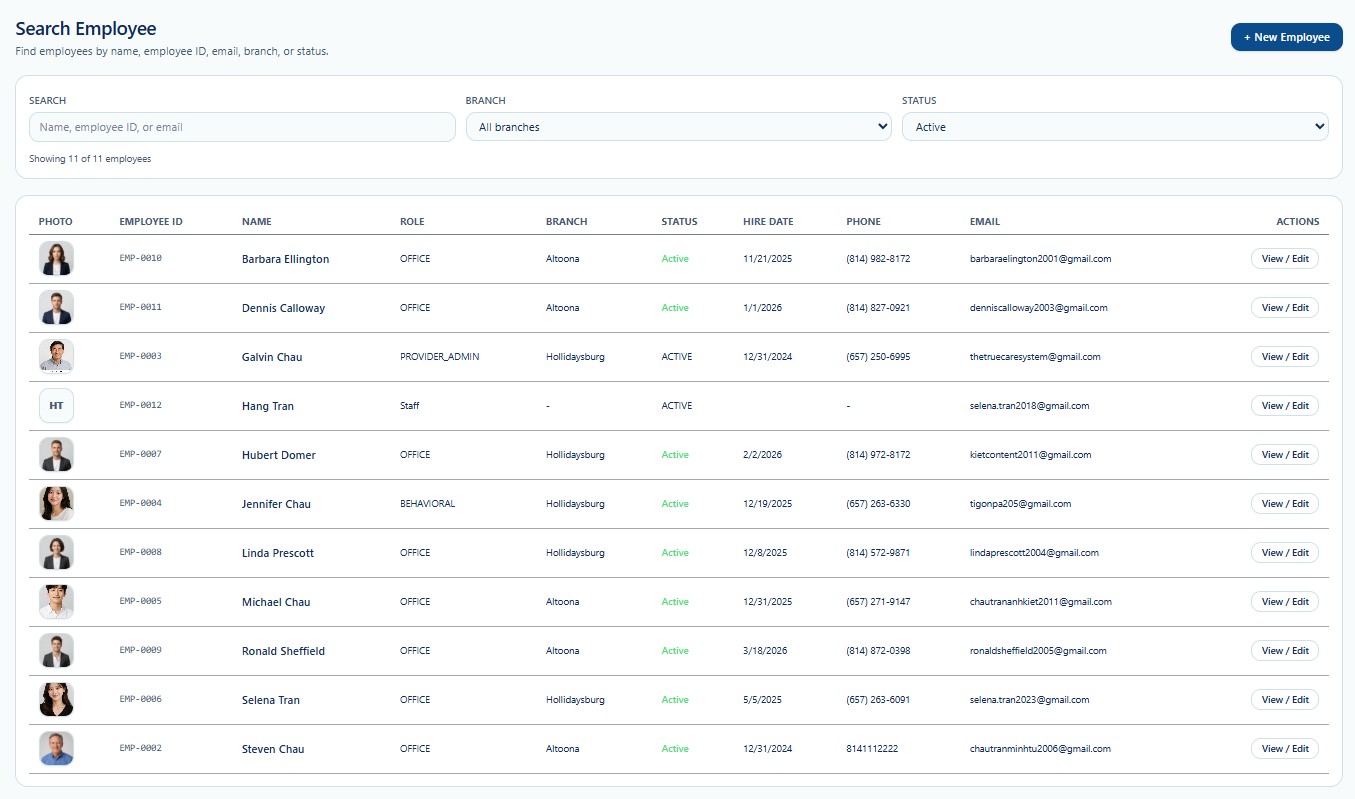
The page contains a search and filter area at the top and a results table below it. The displayed employee count helps users confirm how many records match the current criteria.
Page Actions
| Action | Description | When to Use |
|---|---|---|
| + New Employee | Opens the New Employee page. | Use only after confirming that the employee does not already exist. |
| Search Field | Filters employees by name, employee ID, or email. | Use the most specific known identifier. |
| Branch | Limits results to one Branch or displays all Branches. | Use to narrow employees by organizational location. |
| Status | Limits results by employment status. | Use Active for routine operations or another status for historical review. |
| View / Edit | Opens the selected employee record. | Use after verifying the correct employee row. |
Keyword Search
The Search field accepts a name, employee ID, or email address. Search results update according to the entered keyword and selected filters.
| Search Type | Example | Guidance |
|---|---|---|
| Employee Name | Jennifer Chau | Use a full or partial first or last name. |
| Employee ID | EMP-0004 | Best choice when the exact system identifier is known. |
| employee@example.com | Useful when employees have similar names. |
Search Tips
- Start with Employee ID when available.
- Use the last name when the full name is uncertain.
- Use email to distinguish employees with similar names.
- Check Branch and Status filters when an expected record is missing.
- Review at least two identifying details before selecting View / Edit.
Branch Filter
The Branch filter limits results to employees assigned to a selected Provider branch. The screenshot shows All Branches.
| Selection | Description | Typical Use |
|---|---|---|
| All Branches | Displays employees from every Branch available to the current user. | Use for a Provider-wide employee search. |
| Specific Branch | Displays only employees associated with the selected Branch. | Use for branch staffing or administrative review. |
Available Branches and employee records may depend on the user's Provider assignment, role, permissions, and authorized operational scope.
Status Filter
The Status filter limits the result list to employees with the selected employment status. The screenshot shows Active.
| Status | Description | Typical Use |
|---|---|---|
| Active | Employee is currently active for operational use. | Routine scheduling, mobile, payroll, and staffing workflows. |
| Inactive | Employee is not active for new operational assignments. | Historical or administrative review. |
| Pending | Employee onboarding or approval is incomplete when this status is configured. | Review incomplete setup records. |
| Terminated | Employment has ended when this status is configured. | Historical, payroll, or compliance review. |
Use the exact status values configured in the system. Available options may vary by Provider configuration.
Employee Count
The page displays a result summary such as Showing 11 of 11 employees. This helps users confirm the number of records currently displayed.
- A low count may indicate a narrow Branch or Status filter.
- A count of zero may indicate an incorrect keyword or excluded status.
- A high count may require a more specific search term.
- The count reflects the user's permitted Provider and Branch scope.
Search Results Table
| Column | Description | Review Guidance |
|---|---|---|
| Photo | Employee profile image or initials when a photo is unavailable. | Use as a secondary visual reference only. |
| Employee ID | True Care System employee identifier. | Use to distinguish employees with similar names. |
| Name | Employee's full name. | Verify spelling before opening. |
| Role | Employee's assigned role or position. | Confirm the role matches the expected employee. |
| Branch | Employee's assigned Branch. | Verify organizational location. |
| Status | Current employee status. | Confirm that the employee is eligible for current operational use. |
| Hire Date | Date employment began. | Useful as an additional identity and employment check. |
| Phone | Primary employee phone number. | Use only for authorized business communication. |
| Primary employee email address. | Verify before sending notifications or access instructions. | |
| Actions | Contains the View / Edit action. | Open only after confirming the correct employee. |
View / Edit Workflow
- Enter a search term when needed.
- Select the correct Branch.
- Select the correct Status.
- Review the displayed employee count.
- Locate the correct employee row.
- Verify Employee ID, name, role, Branch, and email.
- Select View / Edit.
- Review or update the employee record according to authorization.
Do not rely only on the employee photo or name. Confirm Employee ID and another identifying detail before opening or changing the record.
Duplicate Prevention
Always search before selecting + New Employee. Duplicate employee records may create access, scheduling, payroll, mobile EVV, notification, and reporting problems.
Recommended Duplicate Check
- Search by Employee ID when available.
- Search by full or partial name.
- Search by email address.
- Review all relevant Branches.
- Review Active, Pending, Inactive, or Terminated statuses when configured.
- Compare role, Branch, phone, email, and hire date.
- Create a new employee only after confirming no existing record matches.
When a possible duplicate is found, do not create another employee. Contact an authorized administrator or support user for review.
Creating a New Employee
Select + New Employee only after completing the duplicate check.
- Enter verified demographic information.
- Assign the correct role, status, employment type, Branch, and work location.
- Complete address and emergency contact details.
- Review work and notification preferences.
- Enable Mobile User only when approved and required.
- Select Save Employee and return to Search Employee to verify the record.
Role, Branch, and Status Review
Search Employee provides a fast way to confirm whether employees are assigned to the correct role, Branch, and employment status.
- Review employees with unexpected roles.
- Review records with missing Branch values.
- Confirm Active employees are still employed and authorized.
- Confirm terminated or inactive employees are not used for new scheduling.
- Review Provider Admin and other privileged roles carefully.
Validation Checklist
- The correct Provider context is active.
- The search keyword is accurate.
- The correct Branch filter is selected.
- The correct Status filter is selected.
- The employee count is reviewed.
- Employee ID matches the intended employee.
- Name, role, Branch, phone, and email are reviewed.
- The correct row is selected before View / Edit.
- A duplicate search is completed before creating a new employee.
Best Practices
- Use Employee ID whenever available.
- Use Branch and Status filters to narrow results.
- Verify at least two identifying details before opening a record.
- Do not rely only on the employee photo.
- Review privileged roles regularly.
- Keep employee Status and Branch assignments current.
- Do not create duplicate employee records.
- Do not open employee records without an approved business purpose.
- Report missing or inconsistent employee information to an authorized administrator.
Security and Privacy
Search Employee displays personally identifiable and employment information, including employee names, photos, roles, Branches, status, hire dates, phone numbers, and email addresses.
- Search only for employees required for assigned duties.
- Apply role-based access and least privilege.
- Do not browse employee records out of curiosity.
- Do not share employee screenshots through unapproved channels.
- Protect phone, email, employment, and access-related information.
- Verify the correct employee before opening or editing.
- Access and changes should be recorded through Audit Logs where applicable.
Troubleshooting
The employee does not appear.
Check the spelling, remove unnecessary search text, select All Branches, and review another Status when appropriate.
The search returns too many employees.
Enter a more specific name, Employee ID, or email and select the correct Branch.
The expected inactive employee is missing.
Change the Status filter from Active to Inactive or another applicable status.
View / Edit does not open.
Confirm that the user has permission to access the selected employee and that the session is active.
The Branch column is blank.
Open the employee record and review Branch and Primary Work Location assignments.
A possible duplicate is found.
Do not create another employee. Contact an authorized administrator or support user.
Frequently Asked Questions
Can I search without entering a keyword?
Yes. The page may display employees based on the selected Branch and Status filters.
Can I search by phone number?
The screen specifically identifies name, employee ID, and email as search fields. Phone numbers are shown in results but may not be searchable.
Why does an employee show a dash for Branch or Phone?
The value may be missing or not assigned. Open View / Edit and review the employee record.
Does View / Edit allow changing the employee?
Yes, when the user's role and permissions allow employee maintenance.
Should inactive employees be deleted?
Normally, no. Preserve employment, payroll, scheduling, visit, and audit history according to policy.
Can a terminated employee be reactivated?
Only authorized users should change employment status after HR and administrative review.