
INDIVIDUAL MANAGEMENT
Individual Detail
Individual Detail is the primary workspace for reviewing and maintaining an existing Individual after creation. It provides access to demographic, contact, authorization, scheduling, visit, clinical, financial, document, certification, medication, and order information.
Screen Overview
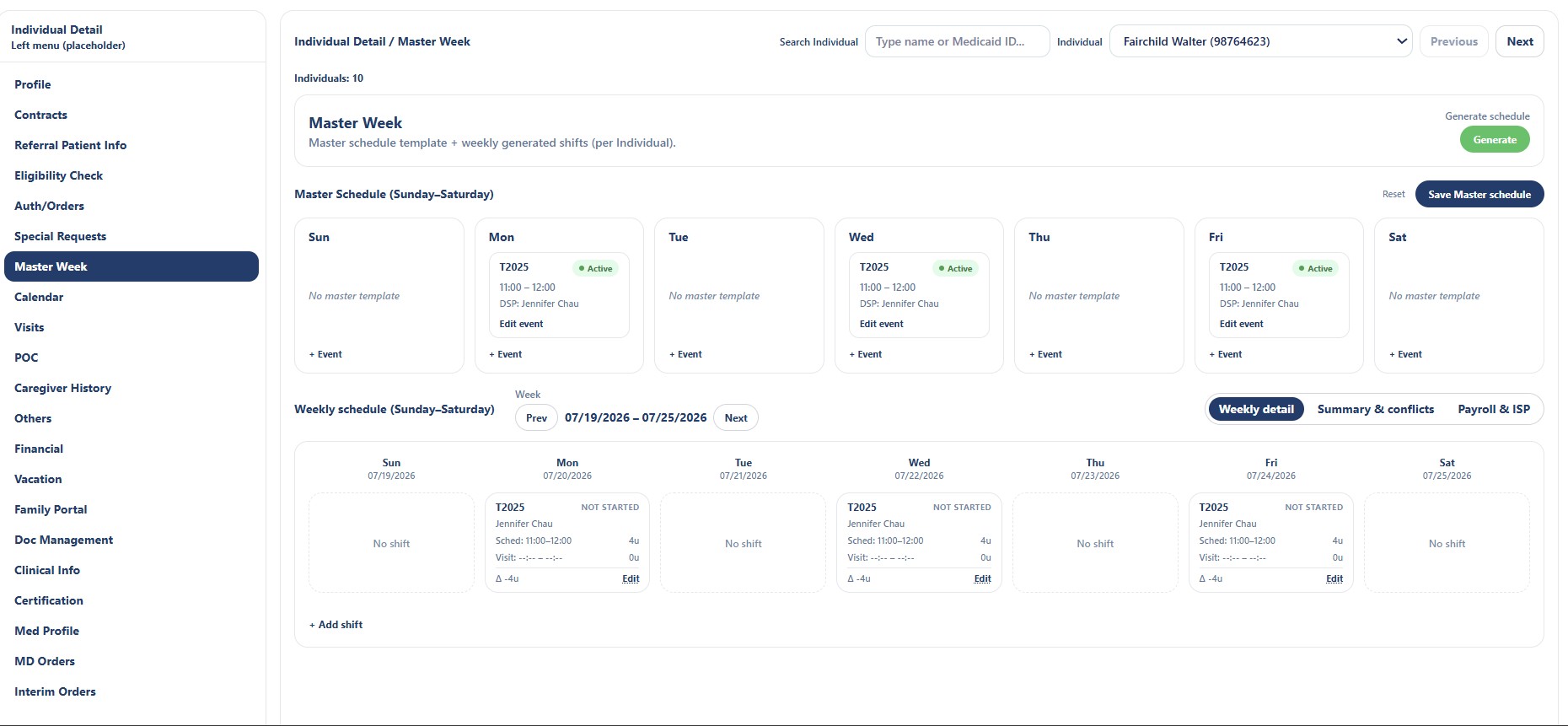
The screen contains a left navigation menu and a main workspace. The currently selected section appears in the main workspace. The screenshot shows Master Week.
Finding and Selecting an Individual
| Control | Description | Guidance |
|---|---|---|
| Search Individual | Search field used to locate an Individual by name or Medicaid ID. | Enter enough information to identify the correct record. |
| Individual | Dropdown showing the currently selected Individual. | Confirm the name and identifier before editing. |
| Previous | Moves to the previous Individual in the current list. | Use carefully and verify the new record. |
| Next | Moves to the next Individual in the current list. | Use carefully and verify the new record. |
| Individuals Count | Displays the number of Individuals available in the current context. | May reflect Provider and permission scope. |
Always confirm the selected Individual's name and identifier before updating information, schedules, visits, documents, clinical records, or orders.
Individual Detail Navigation
| Area | Purpose | Typical Use |
|---|---|---|
| Profile | Core demographic and identity information. | Review or update personal information. |
| Contacts | Individual, guardian, emergency, and related contacts. | Maintain current contact information. |
| Referral Patient Info | Referral and intake-related details. | Review referral source and intake information. |
| Eligibility Check | Payer or program eligibility information. | Review current eligibility status. |
| Auth/Orders | Authorizations and service orders. | Review approved services, units, dates, and orders. |
| Special Requests | Individual-specific service requests or instructions. | Document approved special considerations. |
| Master Week | Weekly recurring service template. | Create and generate scheduled shifts. |
| Calendar | Calendar view of services and events. | Review scheduled activities. |
| Visits | Visit history and visit records. | Review open, completed, canceled, or scheduled visits. |
| POC | Plan of Care information. | Review or maintain care plan details. |
| Caregiver History | History of caregivers assigned to the Individual. | Review staffing continuity and past assignments. |
| Others | Additional Individual-specific information. | Store approved information not represented elsewhere. |
| Financial | Financial, payer, or billing-related details. | Review financial responsibility and billing context. |
| Vacation | Periods when the Individual is unavailable or services are paused. | Prevent inappropriate scheduling. |
| Family Portal | Family Portal access and participation. | Manage approved family access. |
| Doc Management | Individual documents and attachments. | Upload, organize, and review documents. |
| Clinical Info | Clinical and health information. | Review authorized clinical details. |
| Certification | Certifications and required supporting records. | Track expiration and compliance status. |
| Med Profile | Medication profile information. | Review current medication details. |
| MD Orders | Physician or medical orders. | Review active orders and effective dates. |
| Interim Orders | Temporary or interim orders. | Track short-term instructions pending final orders. |
Master Week
Master Week is a reusable Sunday-through-Saturday schedule template for the selected Individual. It can be used to generate weekly scheduled shifts.
| Element | Description | Guidance |
|---|---|---|
| Master Schedule | Recurring service template for each day of the week. | Enter only approved recurring service patterns. |
| + Event | Adds a new event to a selected day. | Use for a recurring service or approved event. |
| Edit event | Updates an existing master event. | Review future schedule impact before editing. |
| Reset | Resets unsaved changes when supported. | Use carefully. |
| Save Master schedule | Saves the recurring weekly template. | Use after reviewing every day. |
| Generate | Generates weekly shifts from the saved Master Week. | Confirm the target week before generating. |
Master Schedule Event
A Master Week event may display the service code, time, assigned DSP, and status. The screenshot shows service code T2025, time 11:00–12:00, an assigned DSP, and Active status.
Review Before Saving
- Correct service code.
- Correct start and end time.
- Correct day of the week.
- Correct assigned DSP when applicable.
- Active status is appropriate.
- Authorization supports the service and units.
- No conflict with another recurring event.
Weekly Schedule
The Weekly Schedule shows generated shifts for a specific Sunday-through-Saturday week. Use Previous and Next to move between weeks.
| Control or View | Description | Guidance |
|---|---|---|
| Prev / Next | Moves to the previous or next week. | Confirm the displayed date range. |
| Weekly detail | Displays daily shift details. | Use for routine weekly review. |
| Summary & conflicts | Displays schedule totals and possible conflicts. | Review before finalizing staffing. |
| Payroll & ISP | Displays payroll and ISP-related schedule information. | Use for unit and staffing comparison. |
| + Add shift | Adds a shift directly to the selected week. | Use for one-time or adjusted shifts. |
| Edit | Edits a generated or manually added shift. | Review authorization and downstream impact. |
Shift Information
A weekly shift card may include:
- Service code.
- Assigned DSP.
- Scheduled start and end time.
- Planned units.
- Actual visit units.
- Visit status.
- Variance between scheduled and actual units.
- Edit action.
Scheduled time and units represent the plan. Visit time and actual units represent delivered service. Review differences before payroll or billing.
Master Week Workflow
- Select the correct Individual.
- Open Master Week.
- Review authorization and approved service frequency.
- Add or edit recurring events for Sunday through Saturday.
- Save the Master schedule.
- Select the target week.
- Generate the weekly schedule.
- Review Weekly detail.
- Review Summary & conflicts.
- Confirm payroll and ISP units when applicable.
Authorization and Unit Review
Master Week and generated shifts should align with the Individual's current authorization, ISP units, payer requirements, service dates, and staffing rules.
- Do not schedule outside authorization dates.
- Do not exceed approved units.
- Use the correct service code.
- Review weekly and cumulative utilization.
- Investigate negative or unexpected unit variances.
- Confirm schedule changes do not create overlaps.
Documents, Clinical Information, and Orders
The lower Individual Detail areas support ongoing record maintenance after intake.
| Area | Information | Review Guidance |
|---|---|---|
| Doc Management | Plans, assessments, forms, consents, and supporting files. | Use secure approved storage and clear file names. |
| Clinical Info | Authorized clinical information. | Limit access to authorized roles. |
| Certification | Certifications and expiration dates. | Monitor missing or expired items. |
| Med Profile | Medication profile and related information. | Verify against current orders. |
| MD Orders | Final physician orders. | Review status and effective dates. |
| Interim Orders | Temporary orders pending final documentation. | Replace or close when final orders arrive. |
Validation Checklist
- The correct Individual is selected.
- The correct Individual Detail area is open.
- Master Week matches the approved recurring schedule.
- Service codes and times are accurate.
- Assigned DSP information is correct.
- Authorization supports scheduled dates and units.
- The Master schedule is saved before generation.
- The target week is correct before Generate is selected.
- Generated shifts are reviewed for conflicts.
- Schedule and actual visit variances are reviewed.
- Documents, clinical information, and orders are current.
Best Practices
- Open the Individual through Search Individual whenever possible.
- Verify the selected Individual before each update.
- Review authorizations before changing schedules.
- Use Master Week for stable recurring patterns.
- Use Add Shift for one-time changes when appropriate.
- Review conflicts before finalizing the week.
- Do not overwrite historical information without an approved reason.
- Keep documents and orders current.
- Record important changes through Audit Logs where applicable.
Security and HIPAA
Individual Detail contains protected health information and personally identifiable information across demographic, clinical, scheduling, visit, financial, medication, document, and order workflows.
- Access only Individuals required for assigned duties.
- Apply role-based access and the minimum necessary principle.
- Do not browse unrelated Individual records.
- Verify the selected Individual before every update.
- Do not share screenshots or documents through unapproved channels.
- Use secure storage and approved links for documents.
- Access and changes should be recorded through Audit Logs where applicable.
Troubleshooting
The wrong Individual is displayed.
Use Search Individual or the Individual dropdown to select the correct record. Verify the name and identifier before continuing.
Generate does not create shifts.
Confirm that the Master schedule is saved, active events exist, and the selected week is valid.
A generated shift has the wrong service or DSP.
Review the source Master Week event, update it if needed, and follow the approved process for correcting generated shifts.
Summary & conflicts shows an issue.
Review overlapping shifts, employee availability, authorization limits, and service times.
Actual units are zero.
Confirm that a visit exists and includes valid check-in and check-out information.
A left-navigation section does not open.
Confirm user permissions, refresh the page, and verify that the session is active.
Frequently Asked Questions
Does Individual Detail replace Search Individual?
No. Search Individual is the normal entry point for locating the correct record. Individual Detail is the workspace used after selection.
Can Master Week be changed after shifts are generated?
Yes, but changes to the template may not automatically correct already generated shifts. Review future schedule impact before editing.
Does Generate create visits?
Generate creates scheduled shifts. Visit records are created or updated through the applicable scheduling, mobile EVV, or visit workflow.
Can one-time shifts be added without changing Master Week?
Yes. Use Add Shift when the screen and permissions allow it.
Should expired orders be deleted?
Normally, no. Update status or dates and preserve history according to Provider policy.
Why do scheduled and actual units differ?
Scheduled units reflect the plan, while actual units reflect delivered visit time. Review missed time, early checkout, late check-in, canceled visits, or manual corrections.