
INDIVIDUAL MANAGEMENT
Search Individual
Search Individual is the primary screen for locating existing Individual records. Users can search by identifying information, filter by status, review result details, open an Individual through View / Edit, or begin creating a new Individual.
Screen Overview
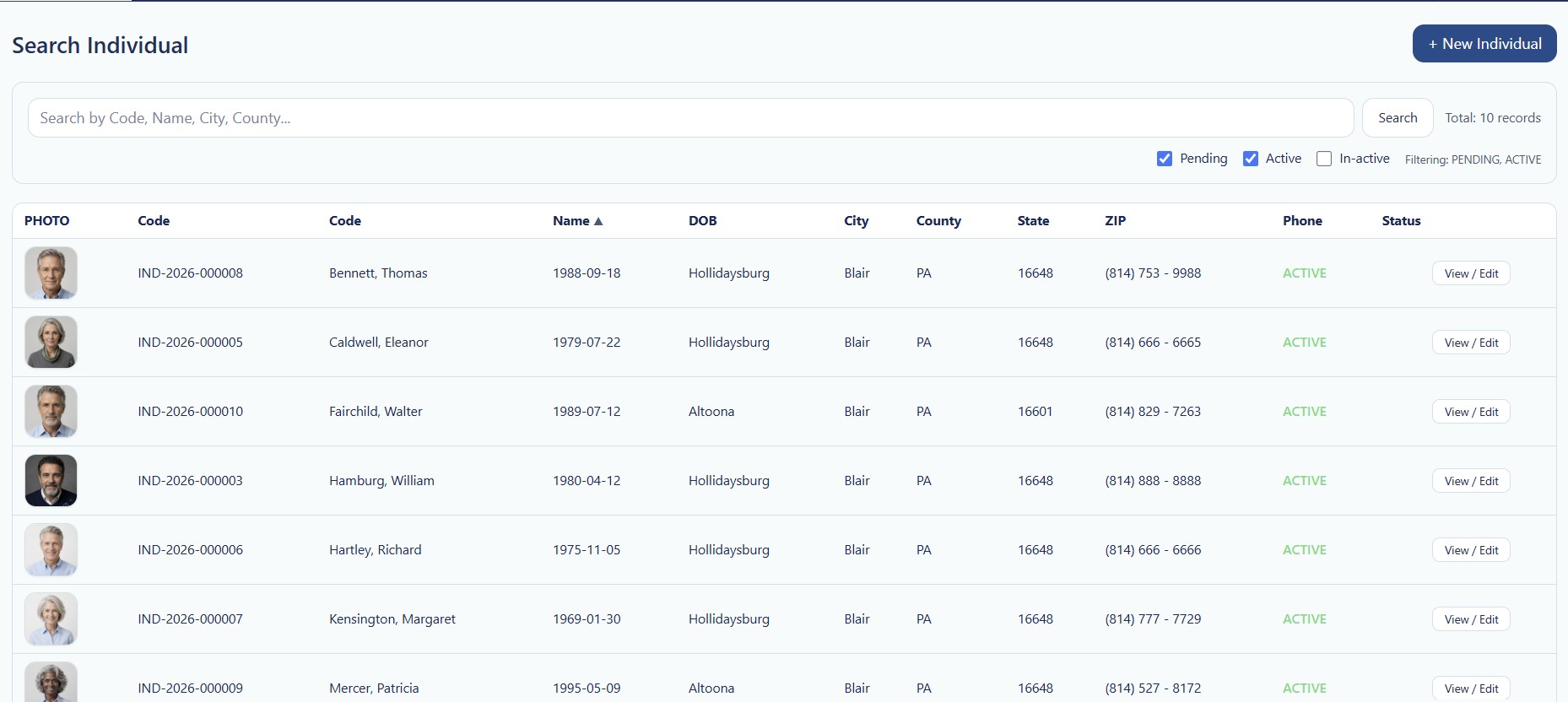
The page contains a search area at the top and a results table below it. The result count and active status filters help users confirm which records are currently displayed.
Page Actions
| Action | Description | When to Use |
|---|---|---|
| + New Individual | Opens the New Individual workflow. | Use only after confirming the Individual does not already exist. |
| Search | Runs the keyword and status-filter search. | Use after entering a search term or changing filters. |
| View / Edit | Opens the selected Individual record. | Use to review or update the Individual. |
| Name Sort | Sorts the result list by Individual name when supported. | Use to organize results alphabetically. |
Keyword Search
Use the search field to locate an Individual by available identifying information. The screen placeholder shows:
Search by Code, Name, City, County...
| Search Type | Example | Guidance |
|---|---|---|
| Individual Code | IND-2026-000008 | Best option when the exact system code is known. |
| First or Last Name | Thomas or Bennett | Use a partial or complete name. |
| City | Altoona | Useful when narrowing Individuals by residence. |
| County | Blair | Useful for service area or regional review. |
Search Tips
- Start with the most specific information available.
- Use the Individual Code when known.
- Try the last name before entering a full name.
- Check the active status filters when expected records do not appear.
- Review the result details before opening a record.
Status Filters
The screen includes status checkboxes for Pending, Active, and In-active. More than one status may be selected at the same time.
| Status | Description | Typical Use |
|---|---|---|
| Pending | The Individual record or enrollment is not yet fully operational or approved. | Review incomplete or pending intake records. |
| Active | The Individual is active for current operational use. | Default filter for routine service operations. |
| In-active | The Individual is not active for new operational activity. | Review historical, discharged, or deactivated records. |
The page displays the currently applied filter values, such as “Filtering: PENDING, ACTIVE,” so users can confirm why a record appears or does not appear.
Total Records
The Total Records value shows how many Individuals match the current keyword and status filters.
- Review the count after every search.
- A count of zero may indicate an incorrect search term or excluded status.
- A high count may require a more specific keyword.
- The count reflects the current Provider and permitted access scope.
Search Results Table
| Column | Description | Review Guidance |
|---|---|---|
| Photo | Individual profile image when available. | Use as a secondary visual reference only. |
| Code | True Care System Individual identifier. | Use to distinguish Individuals with similar names. |
| Name | Individual's name. | Confirm spelling and identity before opening. |
| DOB | Date of birth. | Use as an additional identity check. |
| City | City from the Individual's address. | Helps distinguish similar records. |
| County | County from the Individual's address. | Useful for regional and service area review. |
| State | State abbreviation. | Confirm the expected state. |
| ZIP | Postal ZIP code. | Useful for location verification. |
| Phone | Primary phone number. | Use only for authorized communication. |
| Status | Current Individual status. | Confirm operational eligibility before scheduling or service use. |
| View / Edit | Opens the selected Individual record. | Select only after verifying the correct row. |
Duplicate Prevention
Always search before selecting + New Individual. Search by multiple identifiers when necessary.
Recommended Duplicate Check
- Search by exact Individual Code when available.
- Search by last name.
- Search by first name and date of birth.
- Review Pending, Active, and In-active records.
- Compare city, county, ZIP, and phone number.
- Create a new record only after confirming no existing match.
Duplicate Individual records may cause authorization, scheduling, EVV, billing, reporting, and audit problems. Contact an authorized administrator when a possible duplicate is found.
View / Edit Workflow
- Enter a search term or select the required statuses.
- Select Search.
- Review the matching row carefully.
- Confirm the Individual Code, name, date of birth, and location.
- Select View / Edit.
- Use the Individual Detail navigation to review or update the record.
Access to View / Edit may depend on the user's role, Provider assignment, and permissions.
New Individual Workflow
Select + New Individual only when the search confirms that the person does not already have a record.
- Complete Profile & Contacts.
- Complete Coverage & Billing.
- Complete Clinical & Medication.
- Complete Preparedness & Equipment.
- Complete Preferences & Directives.
- Complete ISP & BSP when available and applicable.
Validation Checklist
- The correct Provider context is active.
- The keyword is spelled correctly.
- The required status filters are selected.
- Total Records is reviewed.
- The Individual Code matches the intended person.
- Name and date of birth are verified.
- City, county, ZIP, or phone are reviewed when needed.
- The correct row is selected before View / Edit.
- A duplicate search is completed before creating a new Individual.
Best Practices
- Use the Individual Code whenever available.
- Search across all relevant statuses before creating a record.
- Verify at least two identifying details before opening a record.
- Do not rely only on the photo.
- Keep search terms simple and specific.
- Use status filters to reduce unnecessary results.
- Do not open records without a legitimate business need.
- Report suspected duplicate records instead of editing both.
- Confirm the correct Provider before searching or editing.
Security and HIPAA
Search Individual displays protected health information and personally identifiable information, including names, dates of birth, addresses, phone numbers, photos, and status.
- Search only for Individuals required for assigned duties.
- Apply role-based access and the minimum necessary principle.
- Do not browse records out of curiosity.
- Do not share search screenshots through unapproved channels.
- Verify the correct Individual before opening the record.
- Access and changes should be recorded through Audit Logs where applicable.
- Do not expose search results where unauthorized persons can view the screen.
Troubleshooting
The Individual does not appear.
Check spelling, remove unnecessary search terms, and select Pending, Active, and In-active to broaden the search.
The search returns too many results.
Use a more specific code, name, city, or county and reduce the selected statuses.
The expected In-active record is missing.
Confirm that the In-active checkbox is selected before running the search.
View / Edit does not open.
Confirm that the user has permission to access the selected Individual and that the session is still active.
The result count appears incorrect.
Review the active keyword and status filters, then run Search again.
A possible duplicate is found.
Do not create another record. Contact an authorized administrator or support user for review.
Frequently Asked Questions
Can I search without entering a keyword?
The page may return records based on the selected statuses. Use a keyword to narrow the list.
Can more than one status be selected?
Yes. The screenshot shows Pending and Active selected together.
Why are there two columns labeled Code in the screenshot?
The displayed table currently shows two Code headings. Users should rely on the values shown in the row and confirm identity with name and date of birth. The UI label may be clarified in a future product update.
Can I edit an In-active Individual?
Access depends on user permissions and Provider policy. Historical records should be changed only for an approved reason.
Does View / Edit open Individual Detail?
Yes. It opens the selected Individual record for review or maintenance.
Should I create a new record when I cannot find an Individual?
Search all relevant statuses and verify alternate spellings or identifiers first. Create a new record only after completing the duplicate check.