GETTING STARTED
Overview
This page is intended for new True Care System users, Provider Administrators, office staff, supervisors, DSPs, nurses, billing staff, payroll staff, compliance staff, trainers, developers, and QA personnel.
Welcome to True Care System
True Care System is an enterprise care management platform designed for organizations that provide home care, intellectual and developmental disability services, residential support, community-based services, and other person-centered programs.
The platform brings workforce management, individual records, scheduling, medication, behavioral support, authorizations, reporting, KPI management, time keeping, EVV, visit maintenance, house management, payroll, billing, HIPAA, support, and provider administration into one coordinated system.
Purpose
The Getting Started guide introduces the system and explains the information users need before beginning daily work.
After completing this section, users should be able to:
- Access True Care System securely.
- Understand the main platform structure.
- Recognize the purpose of each major module.
- Understand that access depends on assigned roles and permissions.
- Follow basic security and HIPAA responsibilities.
- Continue to the documentation relevant to their job duties.
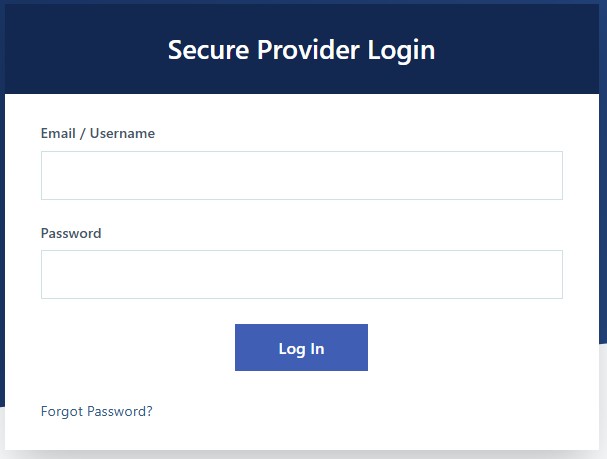
True Care System Login Page
The login page is the secure entry point for authorized users. Users must enter their individually assigned credentials before accessing protected system functions or information.
Who Should Use This Documentation
- Provider Administrators manage users, roles, departments, branches, provider settings, and organization-level configuration.
- Office Staff maintain operational records, schedules, employees, individuals, visits, and supporting data.
- Supervisors review service delivery, documentation, scheduling, employee activity, and exceptions.
- DSPs and Nurses use assigned operational and care workflows based on their permissions.
- Billing and Payroll Staff review readiness, visits, rates, submissions, work time, and payment processing.
- Compliance and Security Staff review HIPAA, access, audit logs, incidents, and security events.
- Developers and QA Staff use technical, API, testing, and release documentation.
Users may see different menus, pages, fields, and actions depending on their role, provider assignment, permissions, and system configuration.
Core Product Modules
Create, search, review, and maintain provider service definitions.
03 IndividualMaintain individual records, details, documents, contacts, and services.
04 EmployeesManage workforce profiles, employment details, credentials, and availability.
05 ScheduleCreate shifts, assign staff, manage recurring schedules, and resolve conflicts.
06 MedicationManage orders, MAR, treatment records, PRN, vitals, inventory, and incidents.
07 BSSManage behavioral support cases, case details, and daily services.
08 AuthorizationsManage service approvals, authorized limits, units, and expiration.
09 ReportsAccess reports center, daily notes, health and incident reports, and call-off requests.
10 KPIManage scorecards, goals, rankings, performance trends, and KPI reports.
11 Time KeepingReview work time, entries, approvals, exceptions, and reports.
12 Mobile EVVSupport mobile visit assignments, check-in, check-out, GPS, and documentation.
13 Visit MaintenanceReview visit details, call logs, corrections, exceptions, merge, and deletion.
14 House ManagementManage residential houses, residents, staff assignments, tasks, and inspections.
15 PayrollManage employee rates, payroll processing, history, tax reports, and settings.
16 BillingManage readiness, visit review, Sandata submissions, settings, and billing errors.
17 HIPAAReview audit activity, PHI access, login history, incidents, reports, and settings.
18 SupportCreate and review support tickets and provider support activity.
19 AdminManage users, roles, departments, announcements, branches, passwords, and provider profile.
How Access Is Controlled
True Care System uses role-based access control. A user's visible menus and available actions are determined by assigned roles, permissions, provider membership, and account status.
Typical roles include:
- Provider Administrator
- Supervisor
- Office
- DSP
- Nurse
- Behavioral
- Billing
- Payroll
- HR
- Compliance
- Facility
- IT
- Read Only
The presence of a menu does not automatically grant permission to every page or action within that menu.
Recommended Learning Path
- Review System Requirements before using the web or mobile platform.
- Review Login and Forgot Password to understand account access and recovery.
- Review Dashboard and System Navigation.
- Review User Profile and Getting Support.
- Continue to the module documentation that matches the user's assigned responsibilities.
Before You Begin
Confirm the following before accessing production information:
- Your organization has an active True Care System account.
- Your user account was created by an authorized administrator.
- Your assigned role matches your job responsibilities.
- You received the correct login address.
- You are using a supported browser and secure internet connection.
- You understand your organization's privacy and security policies.
- You know how to contact an administrator or Support.
Security and HIPAA Responsibilities
True Care System may contain Protected Health Information and other confidential organizational information. Every user is responsible for protecting information available through the account.
- Use only the account assigned to you.
- Keep passwords and verification codes confidential.
- Access only information needed for assigned work.
- Lock or sign out of unattended devices.
- Avoid displaying PHI where unauthorized persons can view it.
- Report suspected unauthorized access or disclosure promptly.
Access only the minimum information required to complete the assigned task.
Audit Logging
True Care System uses audit logging to support accountability, compliance review, security monitoring, and investigation.
Depending on the feature and system configuration, records may include:
- Successful and failed login attempts.
- Logout and session expiration.
- Password and account security activity.
- Access to protected records.
- Creation, update, deletion, and status changes.
- Support impersonation activity.
- Billing, payroll, and administrative actions.
- Exports and other high-risk operations.
Best Practices
- Use a supported, current browser.
- Do not share accounts or credentials.
- Review system messages before continuing.
- Verify information before selecting Save, Submit, Delete, or Approve.
- Keep employee and individual information accurate.
- Use organization-approved devices and networks.
- Sign out when work is complete.
Frequently Asked Questions
Do all users see the same menus?
No. Visible menus and available actions depend on the user's role, permissions, provider assignment, and system configuration.
Can multiple employees share one account?
No. Each user must have an individually assigned account so access and activity can be secured and audited.
What should I do if a required menu is missing?
Contact an authorized Provider Administrator. The account may not have the required role or permission.
Should screenshots contain real individual information?
No. Documentation screenshots must use demo or training data and must not expose real PHI, credentials, Social Security numbers, full Medicaid IDs, or private notes.