
INDIVIDUAL MANAGEMENT
Clinical & Medication
The Clinical & Medication tab captures the Individual's primary care physician, medications, allergies, reactions, and diagnosis information. These details support safe service delivery, clinical review, medication management, emergency response, care planning, documentation, and communication with authorized healthcare contacts.
Screen Overview
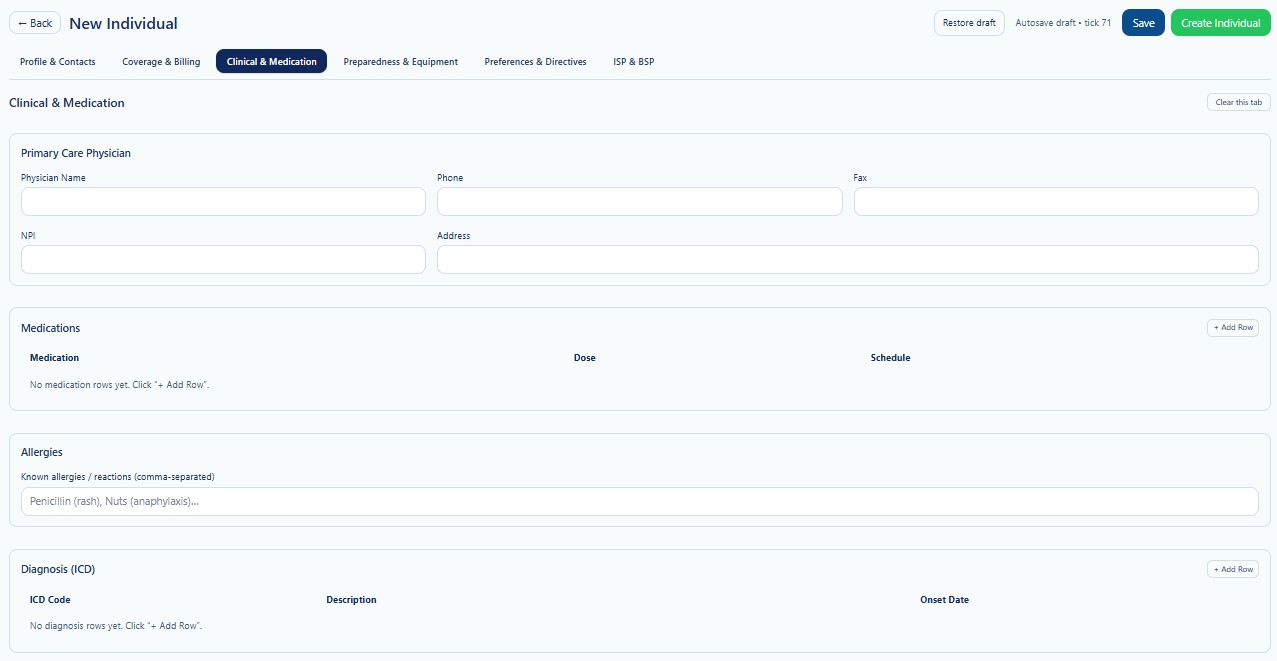
Clinical & Medication is the third tab in the New Individual workflow. Enter only current, verified clinical information. When records are incomplete, save the Individual as a draft and update the tab after receiving approved documentation.
Page Actions
| Action | Description | When to Use |
|---|---|---|
| Back | Returns to the previous Individual page. | Use when leaving the creation workflow. |
| Restore Draft | Restores previously saved draft information. | Use when continuing an incomplete record. |
| Save | Saves current progress without creating the final Individual. | Use when clinical records are incomplete. |
| Create Individual | Creates the Individual after required validation passes. | Use after all required tabs have been reviewed. |
| Clear this tab | Clears values entered on the Clinical & Medication tab. | Use carefully when restarting this section. |
| + Add Row | Adds a new medication or diagnosis row. | Use once for each medication or diagnosis entry. |
Primary Care Physician
This section records the Individual's primary care physician and contact information. Use information from current clinical records or verified Provider documentation.
| Field | Description | Guidance |
|---|---|---|
| Physician Name | Full name of the Individual's primary care physician. | Enter the current physician of record. |
| Phone | Main office phone number. | Use the number appropriate for routine communication. |
| Fax | Secure office fax number. | Use only for approved clinical communication. |
| NPI | National Provider Identifier for the physician. | Verify before saving when available. |
| Address | Physician office or practice address. | Enter the current practice location. |
Confirm the physician name, NPI, office contact information, and address against approved clinical or payer documentation. Do not assume an older physician remains active.
Medications
The Medications section lists medications currently associated with the Individual. Select + Add Row to create a separate row for each medication.
| Column | Description | Guidance |
|---|---|---|
| Medication | Name of the prescribed or approved medication. | Use the complete medication name from the current order. |
| Dose | Ordered strength and amount. | Include units such as mg, mL, tablet, or other ordered measure. |
| Schedule | Frequency or administration schedule. | Use the exact approved directions when available. |
Medication Entry Guidance
- Create one row per medication.
- Use the current medication order or medication administration record.
- Do not enter estimated doses.
- Include PRN instructions when applicable and supported by the order.
- Review discontinued medications before saving.
- Do not use this summary as a replacement for the official medication order or MAR.
Detailed medication administration, orders, records, and related workflows may also be managed in the Medication module and Individual Detail areas after the Individual is created.
Allergies
Enter known allergies and reactions in the Allergies field. The screen supports a comma-separated list.
| Information | Description | Example |
|---|---|---|
| Medication Allergy | Allergy or adverse reaction to a medication. | Penicillin — rash |
| Food Allergy | Allergy or reaction to food. | Tree nuts — anaphylaxis |
| Environmental Allergy | Allergy to environmental substances. | Latex — skin irritation |
| Other Reaction | Other clinically significant reaction or sensitivity. | Contrast dye — swelling |
Enter both the allergen and the known reaction when available. Do not enter “No Known Allergies” unless that status has been verified from an approved source.
Diagnosis (ICD)
The Diagnosis section records diagnosis information using ICD codes. Select + Add Row to add each diagnosis separately.
| Column | Description | Guidance |
|---|---|---|
| ICD Code | Approved diagnosis code. | Use the code from verified clinical documentation. |
| Description | Plain-language diagnosis description. | Match the diagnosis associated with the ICD code. |
| Onset Date | Date the diagnosis began or was documented. | Use MM/DD/YYYY when known. |
Diagnosis Entry Guidance
- Create one row per diagnosis.
- Use only diagnoses supported by approved records.
- Do not assign or infer a diagnosis.
- Confirm that the ICD code and description match.
- Use the documented onset date when available.
- Review resolved or inactive diagnoses according to Provider policy.
Validation Checklist
- Primary Care Physician information is current.
- Physician phone, fax, NPI, and address are verified when entered.
- Each medication has a separate row.
- Medication name, dose, and schedule match the current order.
- Discontinued medications are not listed as current.
- Allergies include the known reaction when available.
- “No Known Allergies” is entered only when verified.
- Each diagnosis has a separate row.
- ICD codes and descriptions match approved documentation.
- Onset dates are accurate when available.
Best Practices
- Use current physician orders, medication records, and clinical documentation.
- Do not copy outdated medication lists without verification.
- Record medication allergies prominently and accurately.
- Review clinical information during intake and after major health changes.
- Update physician information when the Individual changes providers.
- Use Save when clinical documentation is incomplete.
- Do not use placeholder diagnoses, doses, or schedules.
- Coordinate updates with authorized nursing, clinical, or administrative staff.
Security and HIPAA
Clinical & Medication contains highly sensitive protected health information, including physician details, medications, allergies, diagnoses, and health history.
- Access only Individuals required for assigned job duties.
- Apply role-based access and the minimum necessary principle.
- Do not share medication lists or diagnoses through unapproved channels.
- Verify the correct Individual before viewing or editing clinical information.
- Use approved secure methods when communicating with physicians or pharmacies.
- Record access and changes through Audit Logs where applicable.
- Do not use real clinical information in training examples unless properly authorized and protected.
Troubleshooting
The medication row cannot be added.
Select + Add Row and confirm that the current tab is active. Save the draft and reload the page if the row does not appear.
The diagnosis row cannot be added.
Confirm that the Diagnosis section is visible and select its corresponding + Add Row button.
The physician NPI is rejected.
Verify the NPI for accuracy, remove spaces or punctuation, and confirm that the value belongs to the physician entered.
A medication is missing from the list.
Add a new medication row and enter the current medication, dose, and schedule from the approved order or medication record.
The allergy field is difficult to read.
Use a consistent comma-separated format such as “Penicillin — rash, Tree nuts — anaphylaxis.”
Clinical information is not yet available.
Save the Individual as a draft and update the tab after receiving approved clinical records.
Frequently Asked Questions
Can I create the Individual without medication information?
The system may allow the record to be created, but required clinical information should be completed as soon as approved records become available.
Should discontinued medications remain listed?
Current medication summaries should normally list active medications. Historical or discontinued medication records should be maintained according to the Medication module and Provider policy.
Can DSP staff change diagnoses?
Diagnosis changes should be limited to authorized users and must be supported by approved clinical documentation.
Is the physician NPI required?
Enter it when available or required by the Provider's workflow. Verify the NPI before saving.
Can allergies be entered without a reaction?
Yes, when the reaction is unknown, but the reaction should be added later when verified.
Does this tab replace the Medication module?
No. This tab captures intake and summary information. Detailed medication management, administration, and order workflows remain in the Medication module and related Individual Detail areas.